Article Content
What is Argo Workflows?
Argo Workflows is an open source workflow engine that can help you orchestrate parallel tasks on Kubernetes. Argo Workflows is implemented as a set of Kubernetes custom resource definitions (CRDs) which define custom API objects, which you can use alongside vanilla Kubernetes objects.
Argo Workflows is part of the Argo project, which provides Kubernetes-native software delivery tools including Argo CD, Argo Events and Argo Rollouts. You can interact with Argo via kubectl, the Argo CLI, or the Argo UI.
How Does Argo Workflows Work?
Workflows
A workflow is a new type of Kubernetes resource that lets you define automated workflows, including how they run and store their state. A workflow is an active object that not only includes a static definition but also creates instances of your definition as needed.
You can use the workflow.spec field to define a workflow to run. This specification contains:
- Templates—a
templateserves as a function that defines instructions for execution. - Entry point—an
entrypointlets you specify the first template to execute or the workflow’s primary function.
Templates
Argo lets you use various templates to define the required functionality for a workflow. It is typically a container, but you can also set other types of templates, including:
- Container—this template reserves a container. It lets you define the container as you define a Docker container in Kubernetes.
- Resource—this template performs operations directly on your cluster resources. You can use it for various cluster resource requests, including GET, APPLY, CREATE, PATCH, DELETE, and REPLACE.
- Script—this template uses a script as a convenience wrapper for a container. It works similarly to a container spec, except that it uses a
source:field to let you define a script. - Suspend—this template pauses a workflow execution indefinitely or for a specified period. You can manually resume a suspended template from the API endpoint or UI. Alternatively, you can use the CLI with the
argo resumecommand.
Argo Workflows Examples
Code in this section is taken from the official Argo Workflows examples.
1. Argo Workflow Hello World! Example
To get started with Argo Workflows, let’s see how to run a Docker image in an automated workflow. This command runs a simple Docker image on your local machine:
$ docker run docker/whalesay cowsay "hello world"
 _____________
< hello world >
 -------------
    \
     \
      \
                    ##        .
              ## ## ##       ==
           ## ## ## ##      ===
       /""""""""""""""""___/ ===
  ~~~ {~~ ~~~~ ~~~ ~~~~ ~~ ~ /  ===- ~~~
       \______ o          __/
        \    \        __/
          \____\______/


Hello from Docker!
This message shows that your installation appears to be working correctly.
Let’s see how to run this container image on a Kubernetes cluster using an Argo workflow template:
apiVersion: argoproj.io/v1alpha1
kind: Workflow                  # new type of k8s spec
metadata:
  generateName: hello-world-    # name of the workflow spec
spec:
  entrypoint: whalesay          # invoke the whalesay template
  templates:
 —name: whalesay              # name of the template
    container:
      image: docker/whalesay
      command: [cowsay]
      args: ["hello world"]
      resources:                # limit the resources
        limits:
          memory: 32Mi
          cpu: 100m
Important points about this configuration:
- This YAML code creates a new
kindof Kubernetes spec called aWorkflow. - The
spec:entrypointfield defines which template should be executed at the start of the workflow. It references thewhalesaytemplate below - The
spec:templates:containerfield defines which containers should run when the first step of the workflow is executed—in this case thedocker/whalesaycontainer, invoking the commandcowsay "hello world". - Keep in mind that in this simple configuration we have only one template, but below we’ll see how to define multiple templates that create a multi-step process.
2. Argo Workflow Spec with Parameters Example
The workflow spec below shows how to add a parameter to the workflow, which is injected into the containers it automatically runs.
apiVersion: argoproj.io/v1alpha1
kind: Workflow
metadata:
  generateName: hello-world-parameters-
spec:
  # invoke the whalesay template with
  # "hello world" as the argument
  # to the message parameter
  entrypoint: whalesay
  arguments:
    parameters:
   —name: message
      value: hello world

  templates:
 —name: whalesay
    inputs:
      parameters:
     —name: message       # parameter declaration
    container:
      # run cowsay with that message input parameter as args
      image: docker/whalesay
      command: [cowsay]
      args: ["{{inputs.parameters.message}}"]
Important points about this configuration:
- The
spec:arguments:parametersfield specifies a parameter that can be passed to the templates below. - In the templates.whalesay.container.command field, we run the
cowsaycommand with a configurable message, which is defined by the parameter above. Note that parameters must be enclosed in double quotes to escape the curly braces, like this:"{{inputs.parameters.message}}
Tweaking parameters and entrypoints via the command line:
The parameters used in the Workflow spec are the default parameters—you can override their values using a CLI command like this, changing the message from “hello world” to “goodbye world”:
argo submit arguments-parameters.yaml -p message="goodbye world"
You can also override the default entrypoint, for example by running another template called whalesay-capsinstead of whalesay:
argo submit arguments-parameters.yaml --entrypoint whalesay-caps
You can use both --entrypoint and -p parameters to call any template in any workflow spec with any parameter value.
3. Argo Workflow Steps Example
Let’s see how to create a multi-step workflow. The Workflow spec lets you define multiple steps. These steps can run one after the other or in parallel. A step can reference a template, meaning that it runs the containers in that template. Or it can reference other steps.
apiVersion: argoproj.io/v1alpha1
kind: Workflow
metadata:
  generateName: steps-
spec:
  entrypoint: hello-hello-hello

  # This spec contains two templates: hello-hello-hello and whalesay
  templates:
 —name: hello-hello-hello
    # Instead of just running a container
    # This template has a sequence of steps
    steps:
   —- name: hello1            # hello1 is run before the following steps
        template: whalesay
        arguments:
          parameters:
         —name: message
            value: "hello1"
   —- name: hello2a           # double dash => run after previous step
        template: whalesay
        arguments:
          parameters:
         —name: message
            value: "hello2a"
     —name: hello2b           # single dash => run in parallel with previous step
        template: whalesay
        arguments:
          parameters:
         —name: message
            value: "hello2b"

  # This is the same template as from the previous example
 —name: whalesay
    inputs:
      parameters:
     —name: message
    container:
      image: docker/whalesay
      command: [cowsay]
      args: ["{{inputs.parameters.message}}"]
There are four templates defined here:
hello-hello-hellois a template that does not directly run containers. Instead, it includes three steps:hello1,hello2a, andhello2b.hello2auses a double dash, like this:—- name: hello2awhich means it should run after the previous step.hello2buses a single dash, like this:—name: hello2bwhich means it should run in parallel to the previous step.- All three of these steps reference the original
whalesaytemplate from the previous example. In this Workflow, the template does not immediately run as the entrypoint. Instead, it is invoked several times according to the steps.
After running this Workflow, you can use the Argo Workflows CLI to visualize the execution path and see which pods were actually created by the steps:
STEP            TEMPLATE           PODNAME                 DURATION  MESSAGE
 ✔ steps-z2zdn  hello-hello-hello
 ├───✔ hello1   whalesay           steps-z2zdn-27420706    2s
 └─┬─✔ hello2a  whalesay           steps-z2zdn-2006760091  3s
   └─✔ hello2b  whalesay           steps-z2zdn-2023537710  3s
4. Argo Workflow Exit Handler Example
An exit handler is a template that always executes at the end of a workflow (regardless of whether it completed successfully or returned an error). You can use this to send notifications after a workflow runs, post the status of the workflow to a webhook, clean up artifacts, or run another workflow.
The example below uses spec.onExitfield to invoke a template called exit-handler when the workflow ends. This template includes a few steps that invoke different containers and operations depending on the status of the workflow.
apiVersion: argoproj.io/v1alpha1
kind: Workflow
metadata:
  generateName: exit-handlers-
spec:
  entrypoint: intentional-fail
  onExit: exit-handler
  templates:
  # primary workflow template
 —name: intentional-fail
    container:
      image: alpine:latest
      command: [sh, -c]
      args: ["echo intentional failure; exit 1"]

  # exit handler related templates
  # After the completion of the entrypoint template, the status of the
  # workflow is made available in the global variable {{workflow.status}}.
  # {{workflow.status}} will be one of: Succeeded, Failed, Error
 —name: exit-handler
    steps:
   —- name: notify
        template: send-email
     —name: celebrate
        template: celebrate
        when: "{{workflow.status}} == Succeeded"
     —name: cry
        template: cry
        when: "{{workflow.status}} != Succeeded"
 —name: send-email
    container:
      image: alpine:latest
      command: [sh, -c]
      # Tip: {{workflow.failures}} is a JSON list. If you're using bash to read it, we recommend using jq to manipulate
      # it. For example:
      #
      # echo "{{workflow.failures}}" | jq -r '.[] | "Failed Step: \(.displayName)\tMessage: \(.message)"'
      #
      # Will print a list of all the failed steps and their messages. For more info look up the jq docs.
      # Note: jq is not installed by default on the "alpine:latest" image, however it can be installed with "apk add jq"
      args: ["echo send e-mail: {{workflow.name}} {{workflow.status}} {{workflow.duration}}. Failed steps {{workflow.failures}}"]
 —name: celebrate
    container:
      image: alpine:latest
      command: [sh, -c]
      args: ["echo hooray!"]
 —name: cry
    container:
      image: alpine:latest
      command: [sh, -c]
      args: ["echo boohoo!"]
5. Argo Workflows Cron Jobs Example
A CronWorkflow is another type of Workflow object that runs automatically on a schedule. You can easily convert a regular Workflow object to a CronWorkflow. It works similarly to a Kubernetes CronJob.
Here is an example:
apiVersion: argoproj.io/v1alpha1
kind: CronWorkflow
metadata:
  name: test-cron-wf
spec:
  schedule: "* * * * *"
  concurrencyPolicy: "Replace"
  startingDeadlineSeconds: 0
  workflowSpec:
    entrypoint: whalesay
    templates:
   —name: whalesay
      container:
        image: alpine:3.6
        command: [sh, -c]
        args: ["date; sleep 90"]
The CronWorkflow object adds a few parameters that let you define scheduling:
spec.schedule—a schedule expression that uses a five-digit code to specify when the job should run. Use this tool to generate schedule schedule expressions.concurrencyPolicy—defines if the job should be allowed to run more than once in parallelstartingDeadlineSeconds—defines how long to wait after the scheduled time before running the job.
6. Argo Workflow Kubernetes Jobs Example
Argo Workflows provides another type of template called resource, which you can use to create, update, or delete any Kubernetes resource. This template type accepts any Kubernetes manifest, including CRDs, and can run any kubectl command.
In the example below, a job-nameis extracted from a Job resource using a jsonPath expression, and the workflow runs the command kubectl get job <jobname> to display the entire Job object in JSON format.
apiVersion: argoproj.io/v1alpha1
kind: Workflow
metadata:
  generateName: k8s-jobs-
spec:
  entrypoint: pi-tmpl
  templates:
 —name: pi-tmpl
    resource:
      action: create
      # successCondition and failureCondition are optional expressions which are
      # evaluated upon every update of the resource. If failureCondition is ever
      # evaluated to true, the step is considered failed. Likewise, if successCondition
      # is ever evaluated to true the step is considered successful. It uses kubernetes
      # label selection syntax and can be applied against any field of the resource
      # (not just labels). Multiple AND conditions can be represented by comma
      # delimited expressions. For more details, see:
      # https://kubernetes.io/docs/concepts/overview/working-with-objects/labels/
      successCondition: status.succeeded > 0
      failureCondition: status.failed > 3
      manifest: |
        apiVersion: batch/v1
        kind: Job
        metadata:
          generateName: pi-job-
        spec:
          template:
            metadata:
              name: pi
            spec:
              containers:
             —name: pi
                image: perl
                command: ["perl",  "-Mbignum=bpi", "-wle", "print bpi(2000)"]
              restartPolicy: Never
          backoffLimit: 4
    # Resource templates can have output parameters extracted from fields of the
    # resource. Two techniques are provided: jsonpath and a jq filter.
    outputs:
      parameters:
      # job-name is extracted using a jsonPath expression and is equivalent to:
      # `kubectl get job <jobname> -o jsonpath='{.metadata.name}'`
     —name: job-name
        valueFrom:
          jsonPath: '{.metadata.name}'
      # job-obj is extracted using a jq filter and is equivalent to:
      # `kubectl get job <jobname> -o json | jq -c '.'
      # which returns the entire job object in json format
     —name: job-obj
        valueFrom:
          jqFilter: '.'
7. Kubernetes Secrets Example in a Workflow
Argo Workflows can help securely handle secrets, to avoid embedding them in your code. Confidential information like passwords or keys should always be stored separate from a workflow as Kubernetes secrets, and accessed in the conventional way, for example by mounting the secret as a volume or as an environment variable.
Before running this example, create a secret by running this command in the cluster:
kubectl create secret generic my-secret --from-literal=mypassword=S00perS3cretPa55word
The following workflow defines the secret as a volume and mounts it in the alpine:3.7 container invoked by the print-secrettemplate.
apiVersion: argoproj.io/v1alpha1
kind: Workflow
metadata:
  generateName: secrets-
spec:
  entrypoint: print-secret
  # To use a secret as files, it is exactly the same as mounting secrets as in
  # a pod spec. First add an volume entry in the spec.volumes[]. Name the volume
  # anything. spec.volumes[].secret.secretName should match the name of the k8s
  # secret, which was created using kubectl. In any container template spec, add
  # a mount to volumeMounts referencing the volume name and a mount path.
  volumes:
 —name: my-secret-vol
    secret:
      secretName: my-secret
  templates:
 —name: print-secret
    container:
      image: alpine:3.7
      command: [sh, -c]
      args: ['
        echo "secret from env: $MYSECRETPASSWORD";
        echo "secret from file: `cat /secret/mountpath/mypassword`"
      ']
      # To use a secret as an environment variable, use the valueFrom with a
      # secretKeyRef. valueFrom.secretKeyRef.name should match the name of the
      # k8s secret, which was created using kubectl. valueFrom.secretKeyRef.key
      # is the key you want to use as the value of the environment variable.
      env:
     —name: MYSECRETPASSWORD
        valueFrom:
          secretKeyRef:
            name: my-secret
            key: mypassword
      volumeMounts:
     —name: my-secret-vol
        mountPath: "/secret/mountpath"
8. Argo Workflow Suspend Template Example
Suspend templates are a way to pause a workflow at a certain point during the process. You can use this for manual approval during software releases, for load testing, etc.
To see how the suspend template works, run the example below and wait for the workflow to reach the second step, approve. At this point it will be suspended and await human approval. To resume the workflow, run this command:
argo resume <workflowname>
Note that another option is to specify a duration, which will automatically continue the template after a specified time.
apiVersion: argoproj.io/v1alpha1
kind: Workflow
metadata:
  generateName: suspend-template-
spec:
  entrypoint: suspend
  templates:
 —name: suspend
    steps:
   —- name: build
        template: whalesay
   —- name: approve
        template: approve
   —- name: delay
        template: delay
   —- name: release
        template: whalesay

 —name: approve
    suspend: {}

 —name: delay
    suspend:
      duration: "20"    # Must be a string. Default unit is seconds. Could also be a Duration, e.g.: "2m", "6h", "1d"

 —name: whalesay
    container:
      image: docker/whalesay
      command: [cowsay]
      args: ["hello world"]
Argo Workflows with Codefresh
Argo Workflows is a generic Workflow solution with several use cases. Two of the most popular use cases are machine learning and Continuous Integration. At Codefresh our focus is on Continuous Integration and software deployment, and so our platform includes a version of Argo Workflows fine tuned specifically for these purposes.
No customization is required in order to get a working pipeline – you can start building and deploying software with zero effort while still enjoying all the benefits Argo Workflows offers under the hood.
Codefresh enhancements of top of Argo Workflows
Codefresh offers several enhancements on top of vanilla Argo Workflows including:
- A complete trigger system with all the predefined events that users of a CI/CD platform expect (i.e. trigger on Git push, PR open, branch delete etc).
- A set of predefined CI/CD pipeline steps including security scanning, image building, and unit tests.
- A build view specifically for CI/CD pipelines.
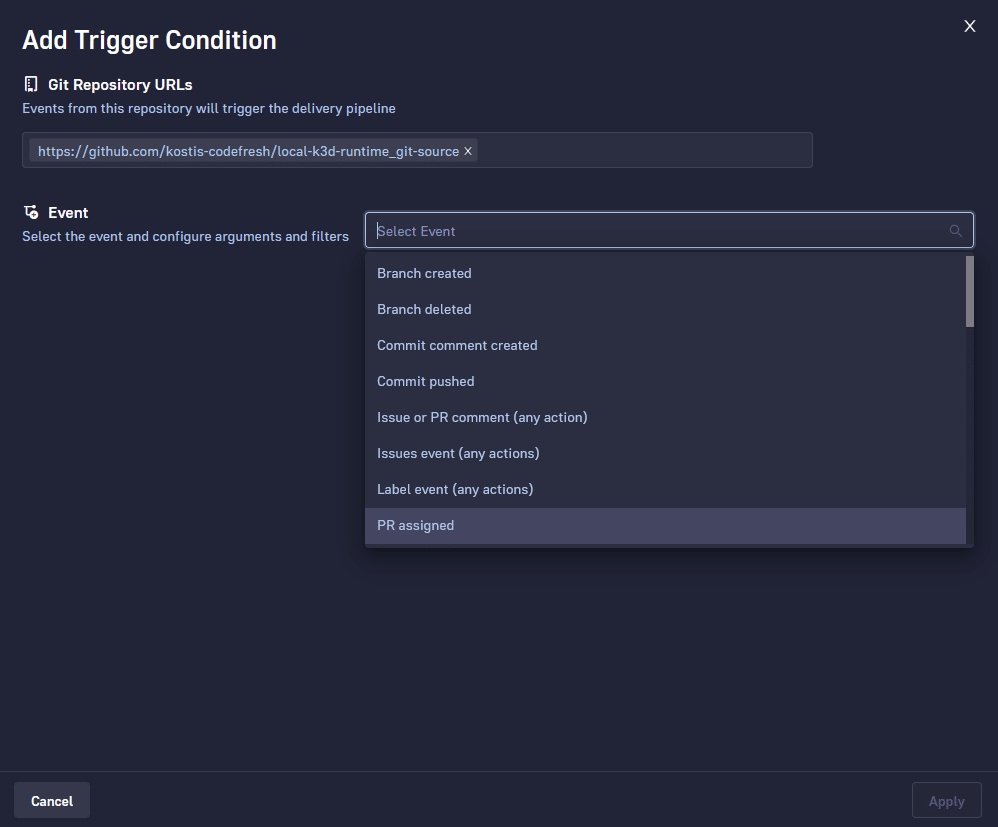
As a quick example, Codefresh offers you all the Git events that you might need for your pipeline in a friendly graphical interface. Under the hood everything is stored in Git in the forms of sensors and triggers.
Codefresh Hub for Argo
We provide Codefresh Hub for Argo, which contains a library of Workflow templates geared towards CI/CD pipelines. Check out some examples of workflows for Git operations, image building and Slack notification.
The availability of all these templates makes pipeline creation very easy, as anybody can simply connect existing steps in a lego-like manner to create a complete pipeline instead of manually writing workflow templates from scratch.
Build view
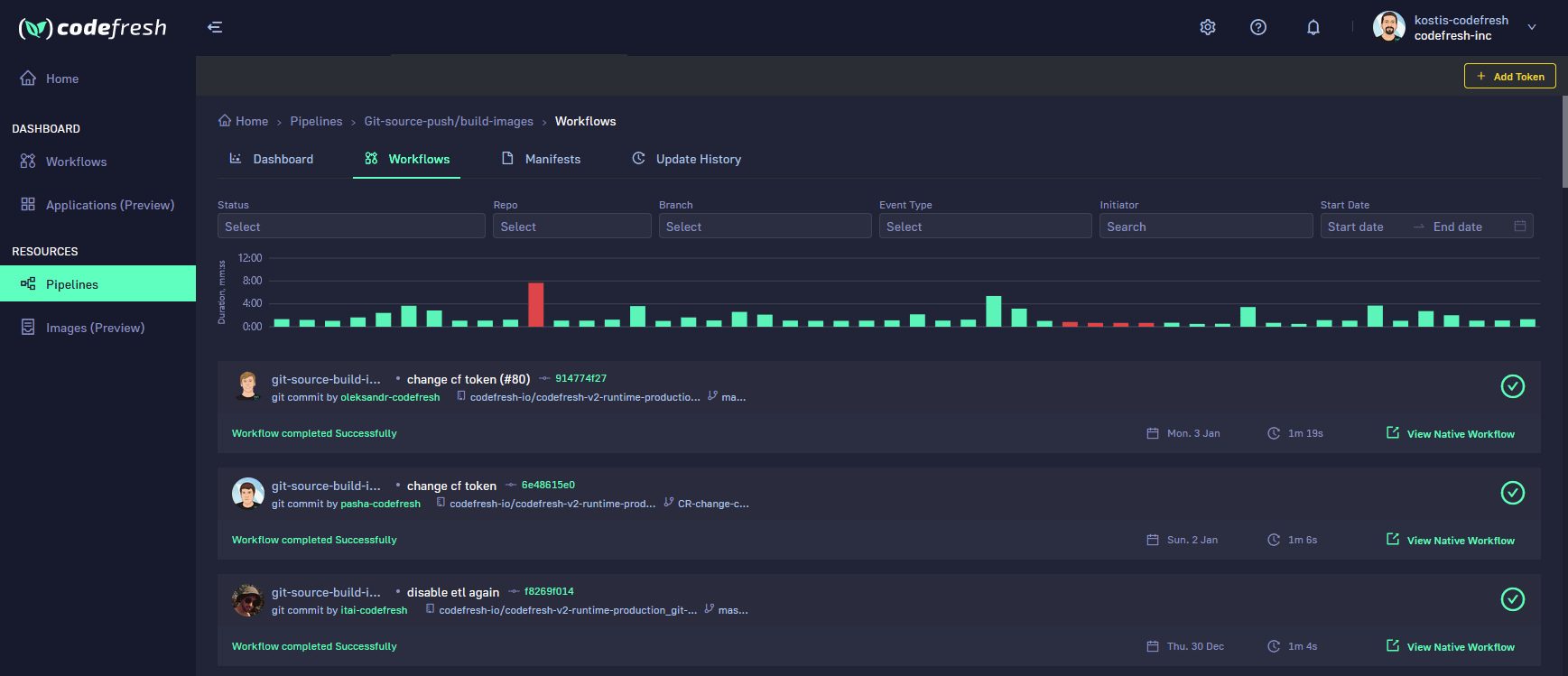
The build view of Codefresh brings together the output of Argo Workflows with all the useful information that a CI pipeline needs (such as the committer and the Git commit that initiated the pipeline) along with search filters for handling a large number of builds.
The World’s Most Modern CI/CD Platform
A next generation CI/CD platform designed for cloud-native applications, offering dynamic builds, progressive delivery, and much more.
Check It Out